SchoolPayr

Simple setup in minutes

Welcome to Your Guide on Getting Started with SchoolPayr

SchoolPayr integrates seamlessly with Google Forms to calculate payments based on user responses and efficiently collects these payments. It automatically updates the connected Google Sheet with payment statuses, keeping you informed about who has paid. But that’s not all—SchoolPayr also integrates seamlessly with Rymindr, saving you countless hours of administrative work and freeing you to focus on more important tasks. Our partnership with Rymindr provides access to a wide range of features and functions that offer significant benefits.

Before You Start

<span data-metadata=""><span data-buffer="">Make sure you have the following to hand


Rymindr Code

<span data-metadata="">Your Rymindr code for your school or PTA. Which can be found in your Rymindr web account (app.rymindr.com)

<span data-metadata="">Stripe Linked Email Address

<span data-metadata=""><span data-buffer="">Easily test the payment process before going live, ensuring everything works smoothly.
Install the SchoolPayr Add-On

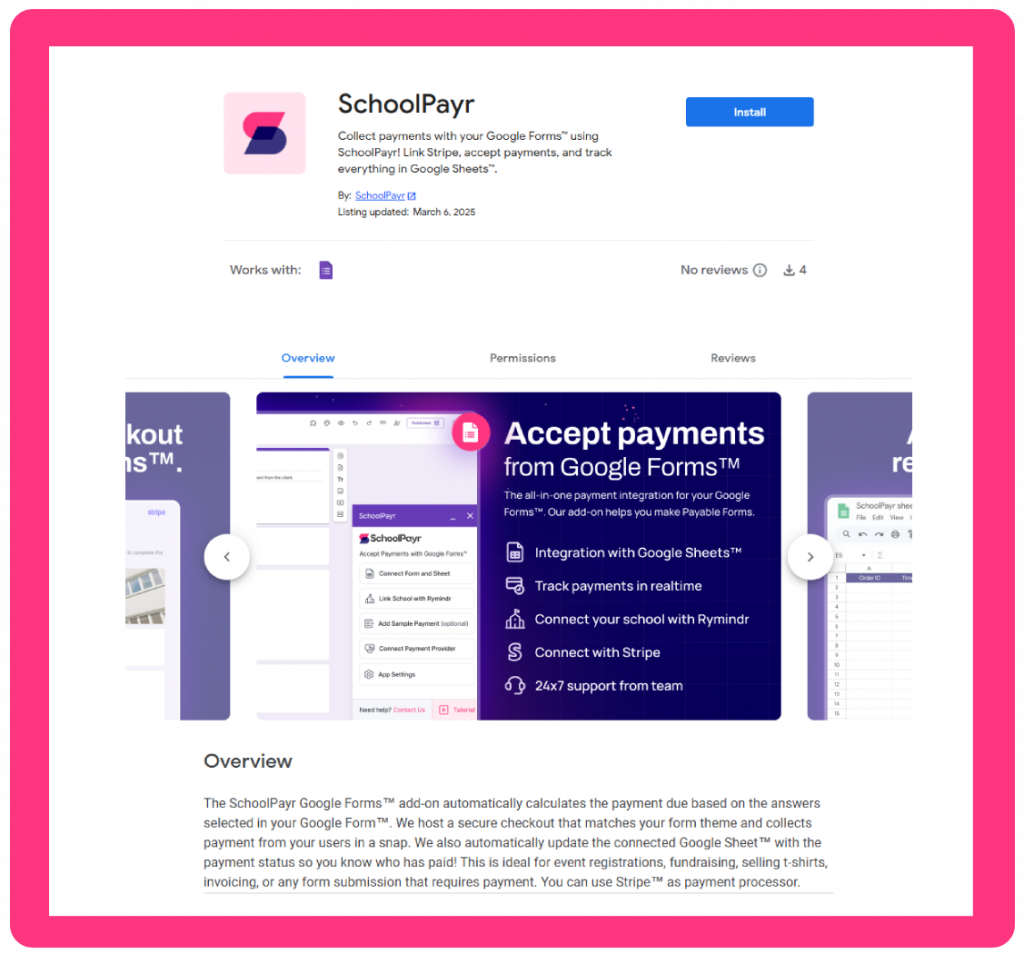
Go to the Google Workspace Marketplace, search for “SchoolPayr,” and hit Install to download it.

SchoolPayr is compatible with Google Forms™ and Google Sheets™ to streamline payment collection.

Verify Installation

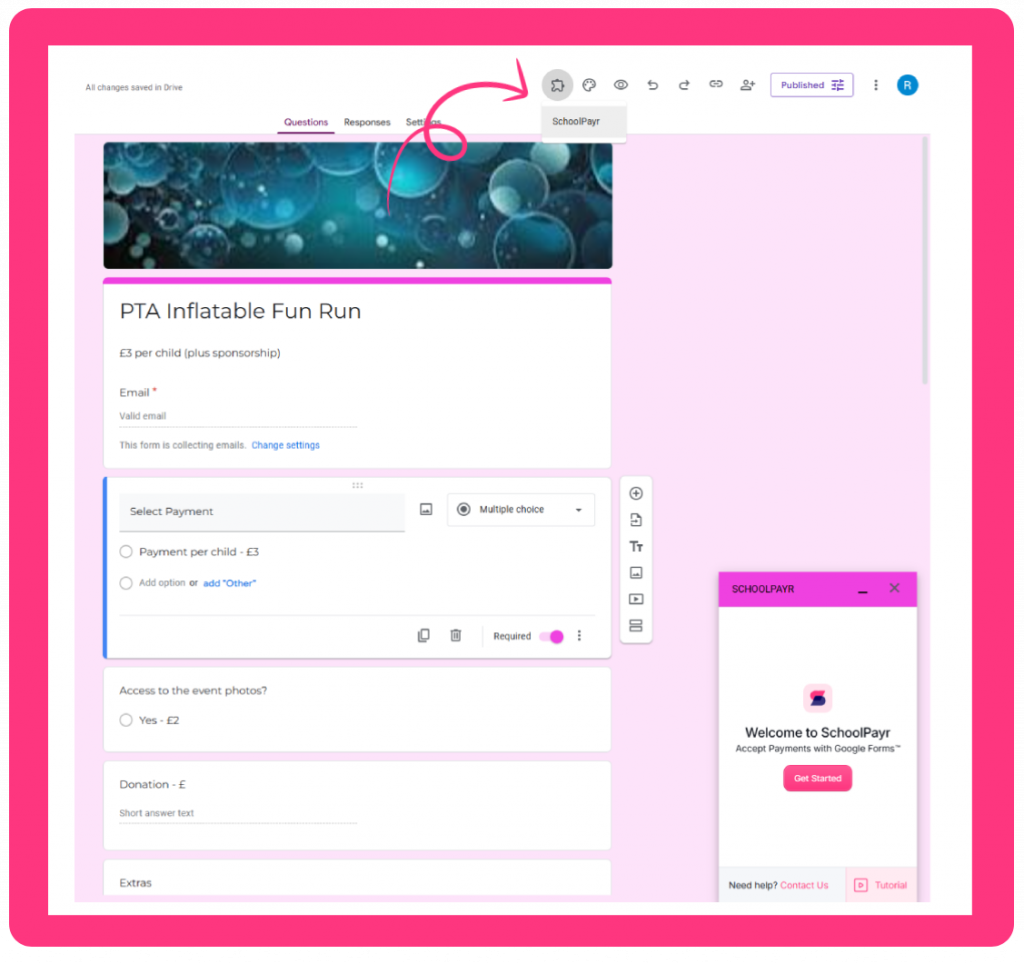
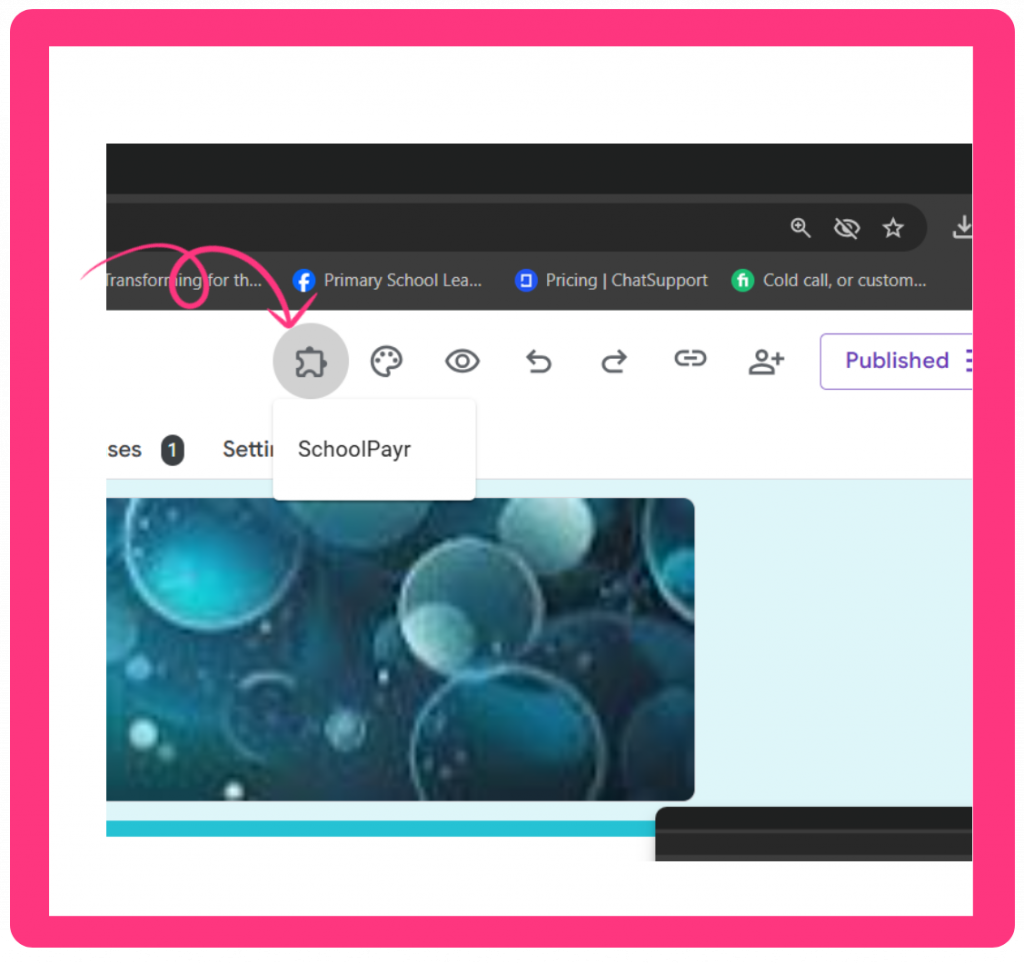
After installation when a Google Form is open you will see a puzzle piece in the tool bar, click on it and you should see “SchoolPayr” listed in the drop down.  


Google Form™ Formatting

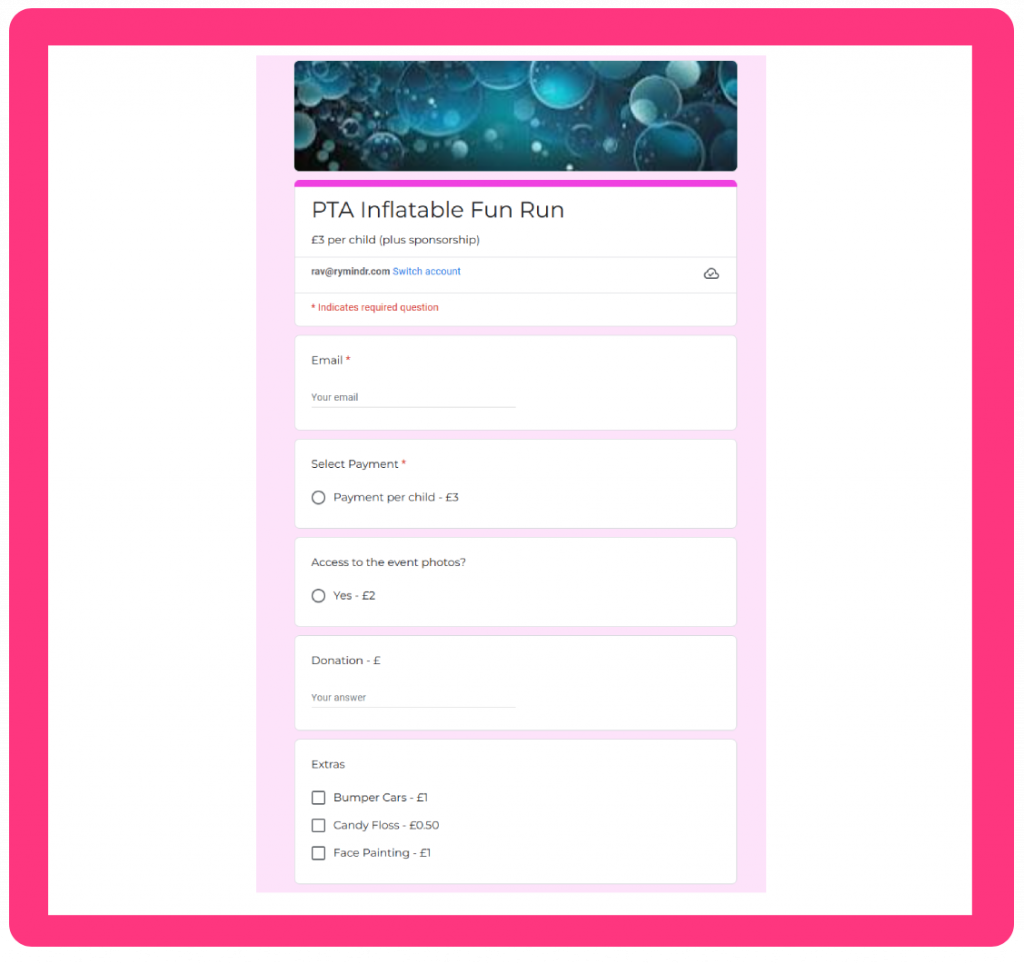
When creating your Google Form always format your  payable items with ‘ – ‘  followed by the amount.  For example:

1 School Tie – £10
Premium Disco Ticket – £20

When asking for donations or custom amounts, add ‘- £’ to the heading of a short answer box.  For example:

Donation amount – £ 

SchoolPayr will automatically identify money amounts inside of the answers that your users select and automatically calculate the order total. 

Start SchoolPayr

With your Google Form open, click the Extensions icon (puzzle piece) in the top menu, then select SchoolPayr.  Ideally have your Google Form ready to go and click Get Started.

Follow these steps

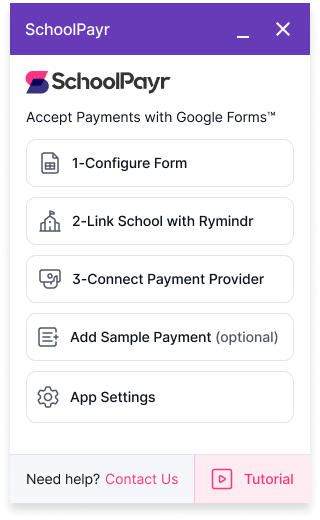
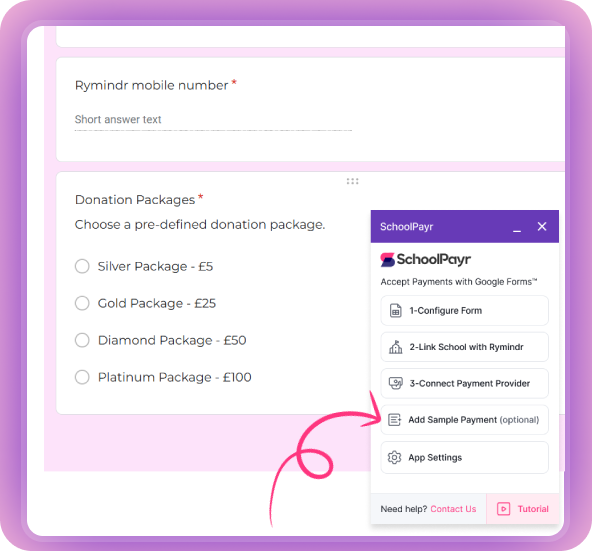
1 - Configure Form

Once you’re happy with your Google Form™, simply select 1-Configure Form. SchoolPayr will automatically make your form payable for parents and link it to a Google Sheet where you can track all responses and payment details. 

Plus, all this information is instantly available in your Rymindr account, making it easy to see who has paid. SchoolPayr keeps everything in sync, so you’re always up-to-date.

You’ll get a success confirmation when configured correctly. 

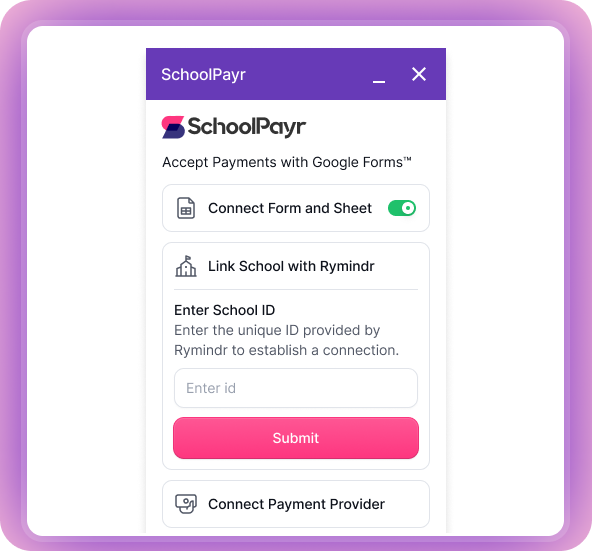
2- Link School with Rymindr

Connect SchoolPayr with your Rymindr account.   Your Rymindr code can be found inside your rymindr account.  Login to your account here: Login

Do not continue to step 3 without completing this step.

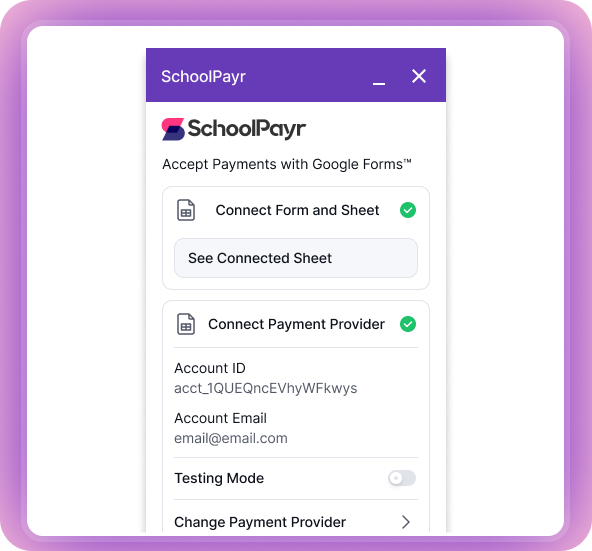
3 - Connect Payment Provider

Connecting Your Rymindr Account and Payment Provider

  1. Connect to Rymindr: Make sure your Rymindr account is connected before moving on.

  2. Set Up Payment Provider:

    • Click ‘Connect with Payment Provider’ and follow the prompts.
    • Note: If you see a pop-up blocker warning, please disable it temporarily to proceed.


Add Sample Payment

Optional

This feature adds a sample payment section to your form. Feel free to edit it as needed.

Last bit...

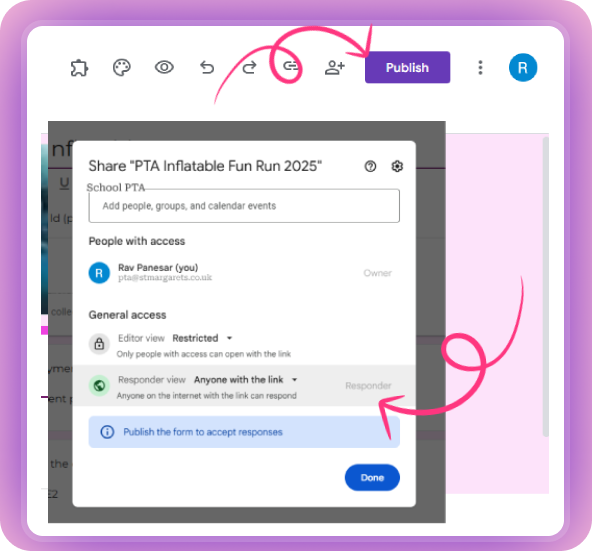
When you’re ready,  remember to :

  1. Make sure the form is published.
  2. Set the responder status to anyone with a link.

All ready to share

Now, simply head over to your Rymindr Dashboard. SchoolPayr has automatically synced all the necessary links, so you’re ready to go!

This seamless integration simplifies payment management, giving you more time to focus on what truly matters.

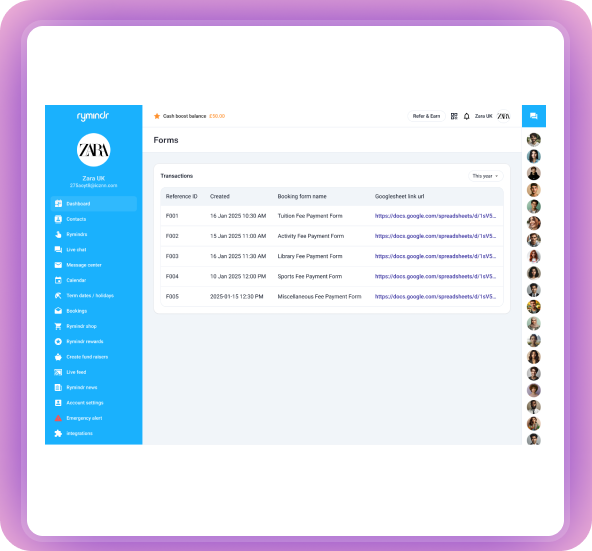
Rymindr Dashboard

Sit back and let Rymindr handle the work! Rymindr will follow up, ensuring payments and form submissions are on time. Track real-time responses and payment statuses effortlessly!

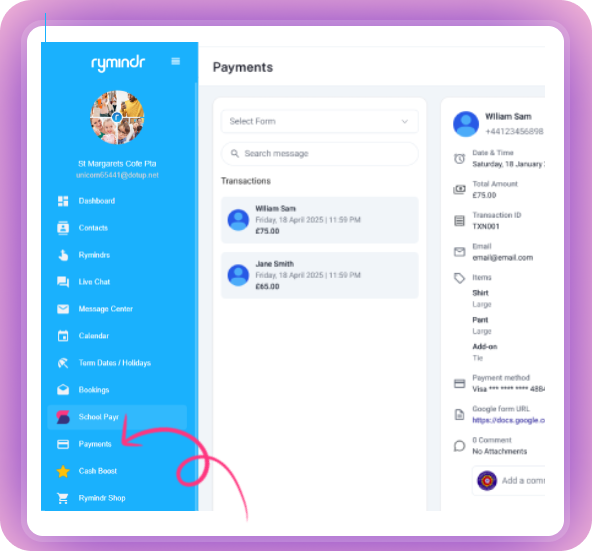
Keep tabs on payments in real-time right from your Rymindr Dashboard. You can download receipts, check out payment details and more—all in one place.

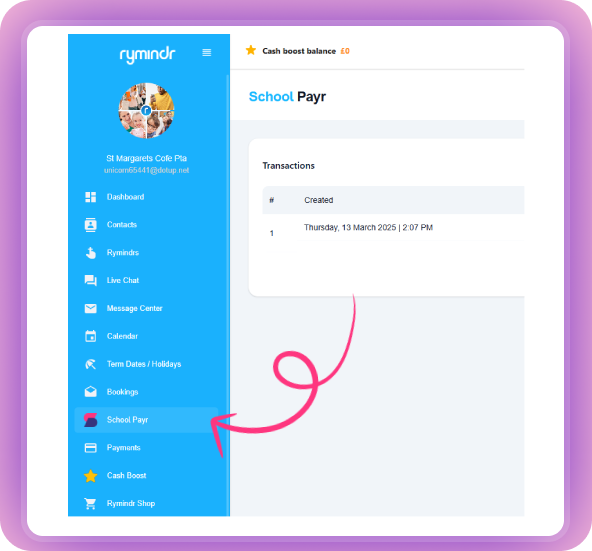
Locate Your SchoolPayr Payment Links

Find the new payment links that SchoolPayr has synced to your dashboard.

Share with Parents

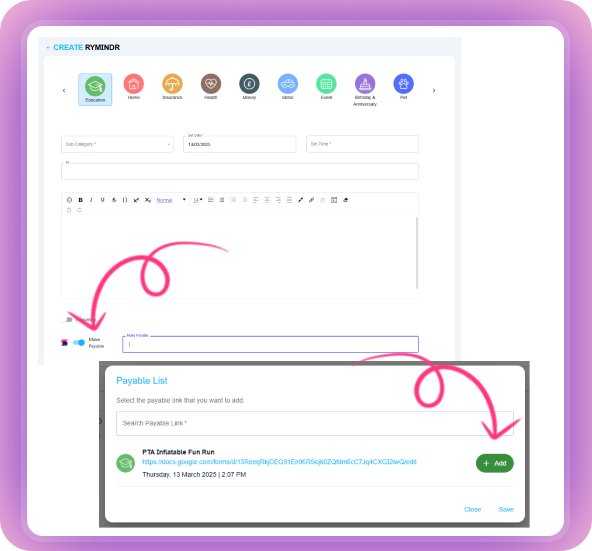
  • Create a New Rymindr or Message: From your Rymindr account start a new Rymindr or message.

  • Attach SchoolPayr Link: During creation, select the option to attach your SchoolPayr link.

Track Payment

Monitor who has completed their payments in real-time, all within your Rymindr Dashboard.

You can download receipts, view payment details and more. 

Integration with Google Sheets

<span data-metadata=""><span data-buffer="">Track payments in real-time, with automatic updates to your linked Google Sheet™ for easy monitoring.


Track Payments in Realtime

<span data-metadata=""><span data-buffer="">Payment statuses are updated in real-time in your linked Google Sheet™, keeping your data current and organised.

<span data-metadata=""><span data-buffer="">Test payments before starting campaign

<span data-metadata=""><span data-buffer="">Easily test the payment process before going live, ensuring everything works smoothly.


<span data-metadata=""><span data-buffer="">Connect your school with Rymindr

<span data-metadata=""><span data-buffer="">Rymindr’s easy integration ensures smooth and accurate data records. This is an all-in-place to track, manage and handle everything!

Download Google Form Templates

Use one of our free templates to get started quickly and easily.

Fun Run Event - Tickets

PTA event form including parent permissions and ticket payment.

T-Shirt Purchase

This form enables ordering of a T-Shirt including size and personal details.

PTA - Fundraising Event. Wear your own clothes day!

This form enables collection of funds for a 'Wear your own clothes day' event.

Got Questions? 
We've Got Answers

Find quick answers to common questions about setting up and using SchoolPayr Add-on

Get the SchoolPayr Forms Add-On Now!